



Catering from first inquiry to delivery: the whole workflow, step by step
A catering order passes through seven stages before the food is eaten. Here is who should own each one and the record it should leave behind.

Key takeaways
- A catering order passes through seven stages, from the first inquiry to the follow-up, and each move from one stage to the next is a place for it to slip.
- Give each stage one owner, one deadline counted back from the event day and one record that stays with the order.
- The production sheet the afternoon before and the follow-up the day after are the two stages that are easiest to skip.
- You can run the whole path on a shared sheet first, and move to a system when two people or two channels start to collide.
A catering workflow has seven stages: inquiry, quote, confirmation and payment, production sheet, packing, delivery and follow-up. Give each stage one owner, one deadline counted back from the event day and one record that stays with the order.
What is a catering workflow, and why does it need its own plan?
A catering workflow is the path one order takes from the first message to the reorder, plus the person who handles each step. A takeout order is made and picked up in one visit. A catering order lives for days and passes through a manager, a kitchen, a packer, a driver and whoever sends the invoice.
Our take: in the catering setups we have looked at, orders tend to slip when the work passes from one stage to the next, usually because one person assumes the next one already knows.
If your orders still arrive by email and get retyped, start with our guide to taking catering orders online, then come back here.
What are the seven stages, and who owns each one?
Each stage needs one named owner, a deadline and a record. The timing below assumes an example event on Friday at noon, so change it to fit your kitchen.
| Stage | Owner | Example timing | The record it leaves |
|---|---|---|---|
| 1. Inquiry | Catering manager | The same business day | Date, headcount, address and budget in one place |
| 2. Quote | Catering manager | The day the inquiry is complete | Price per person, what is included, the date the quote expires |
| 3. Confirmation and payment | Manager and buyer | Order cutoff, for example Tuesday | Payment or deposit, final headcount, an on-site contact |
| 4. Production sheet | Kitchen lead | Thursday afternoon | Counts by item, allergy notes, utensils and setup |
| 5. Packing | Packer | Friday morning, before the car leaves | Item checklist and a loaded-car photo |
| 6. Delivery | Driver | Inside the drop-off window | A photo, a signature and the time |
| 7. Follow-up | Catering manager | The next business day | Invoice, a note on how it went, an offer to reorder |
How do you handle the inquiry and the quote?
Answer the inquiry the same day, and send a quote the buyer can forward to whoever approves it. Office buyers often need someone else’s approval, so the quote has to survive being pasted into an email to a boss.
A good quote shows the price per person, what is included, the date it expires and how to confirm. Our guide to pricing catering per person covers how to set those prices. If the buyer goes quiet after the quote, the guide on abandoned catering carts covers who to call, and when.
What makes an order confirmed?
An order is confirmed when it is paid or has a deposit, the headcount is final, the address is set and someone on site can answer the phone. Until all four are true, the kitchen should treat the order as a maybe.
Set one cutoff and say what happens after it. For example, changes after Tuesday need the manager’s approval and may cost extra. Then send a confirmation that repeats the date, the drop-off window, the headcount and who to call. For companies that pay by invoice, add the PO number here.
Our guide to corporate catering accounts covers invoices and PO numbers. The holiday office party checklist covers deposits and headcount changes in December.
What is a production sheet, and why does the kitchen need one?
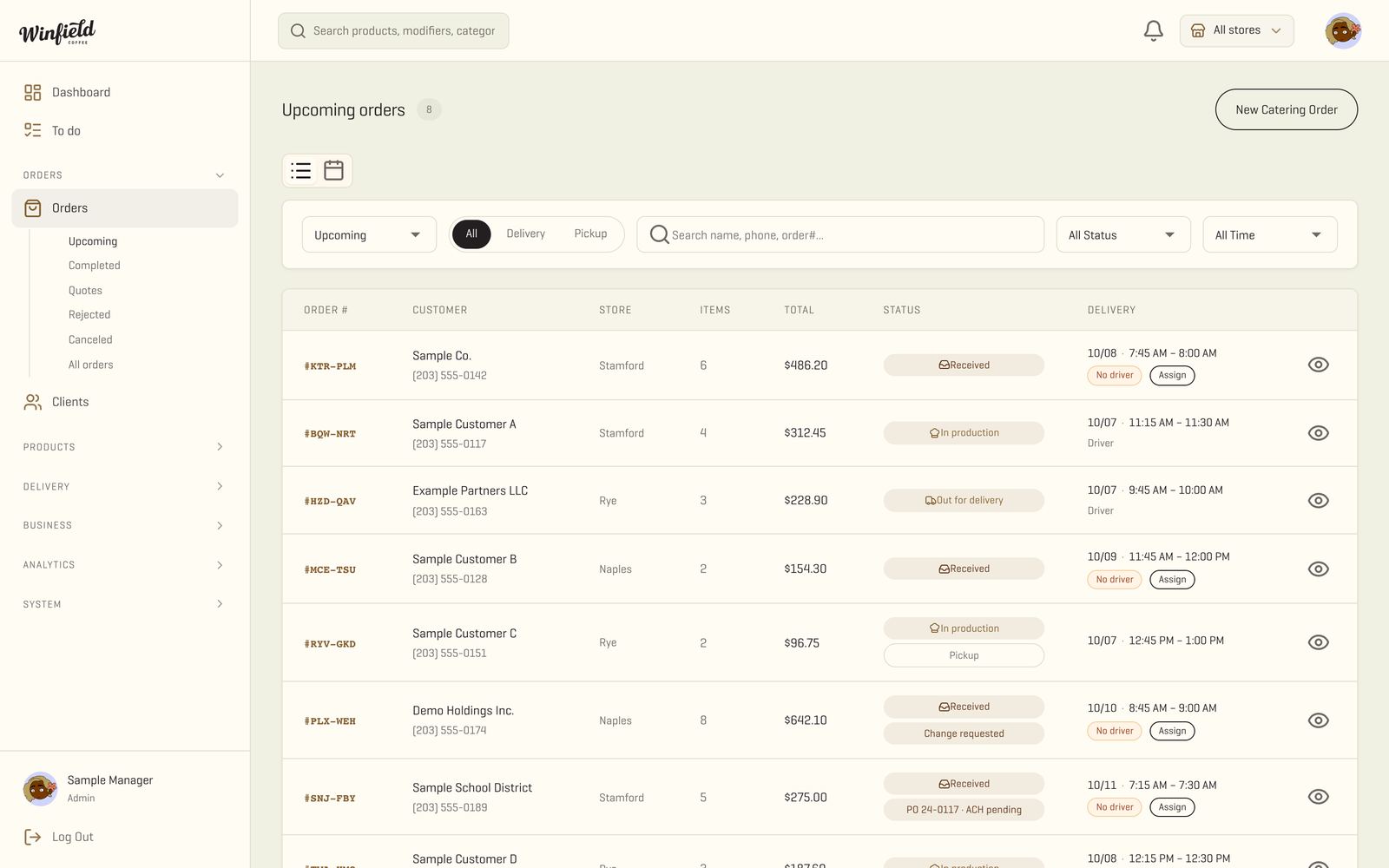
A production sheet is one page that lists everything the kitchen must make and pack for the day’s catering orders, with counts and notes. The kitchen reads it the afternoon before, so the shopping and the prep match what was sold.
Without it, the kitchen reads orders one at a time and misses what they share. Two orders for the same hour can need two sets of trays and two drivers, and that only shows when they sit side by side. Allergy notes and utensil requests belong on the same sheet, because they are easy to lose in a long email thread.
How should packing and driver assignment work?
Pack against the order and name the driver the day before. Check every tray and every small item off the list, then take a photo of the loaded car. Our guide to proof of delivery covers what to capture.
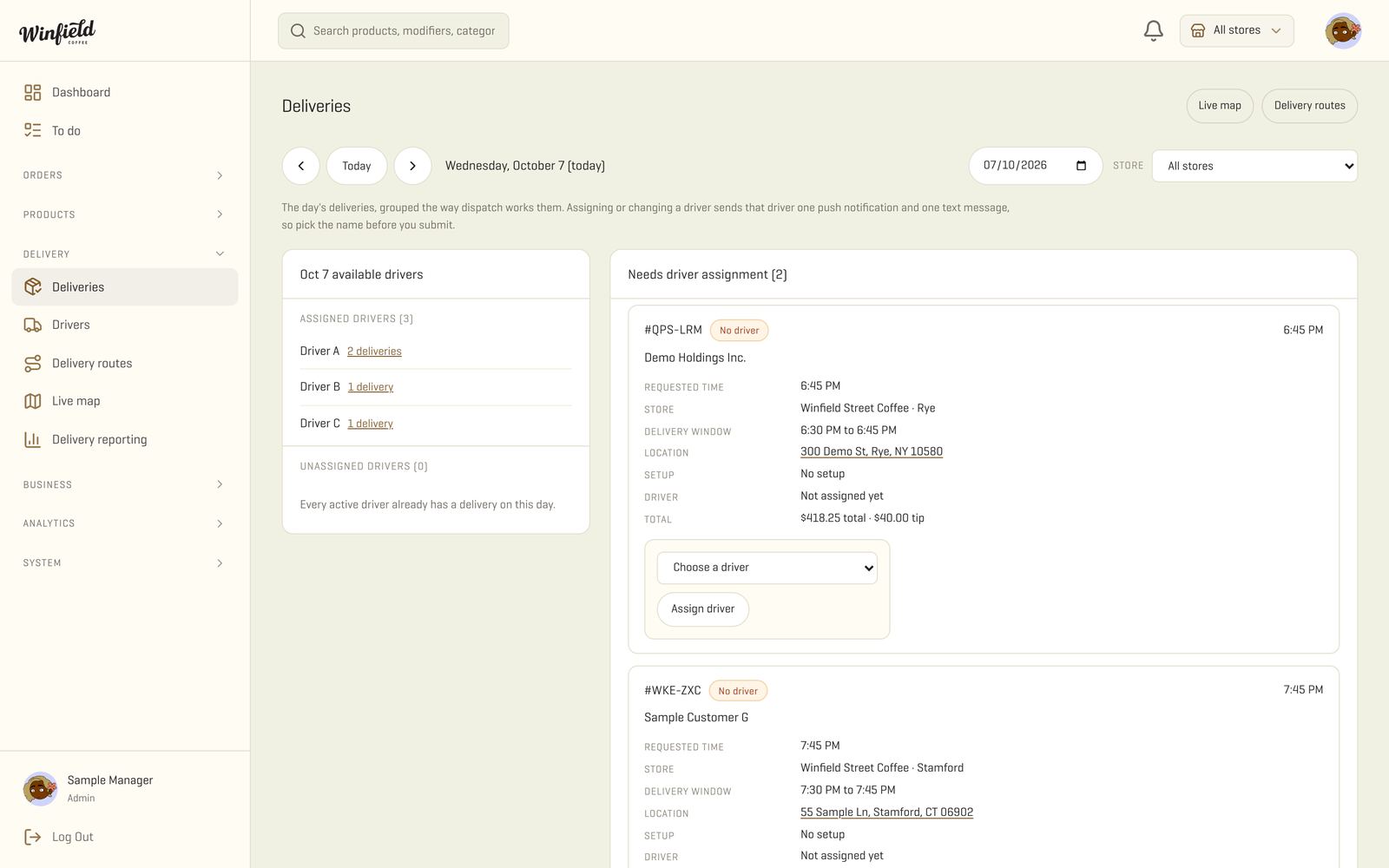
Driver assignment is about the clock. Group the day’s deliveries by drop-off window, count the drivers each window needs and flag any order that has no one assigned. Our rule: no event day should start with an order that has no driver. If you run your own drivers, our comparison of own drivers and on-demand delivery covers the cost side.
What happens at delivery?
The driver arrives inside the window, hands over or photographs the order and closes the delivery with a time. The customer should not have to call to ask where it is. A delivery tracking link answers that question before the phone rings.
Why does follow-up matter, and what should it say?
Follow-up is the easiest stage to skip, and it is the cheapest one. The day after delivery, send the invoice if one is due, ask one question about timing and offer a simple way to order again.
Our take: a buyer who got the right food on time once is the easiest order you can win again, so make the second order a one-step reply. Also write down anything that went wrong, with the stage where it happened. After a month, those notes show which handoff to fix first.
How do marketplace orders fit into the same workflow?
Marketplace orders join at the production sheet. On a marketplace, the buyer usually orders and pays inside the marketplace, so your own workflow starts when you accept the order.
The risk is that these orders sit on a separate screen and the kitchen misses them. We work with ezCater’s API, so in the systems we build, ezCater orders and direct orders land in the same dashboard, and the kitchen reads one list.
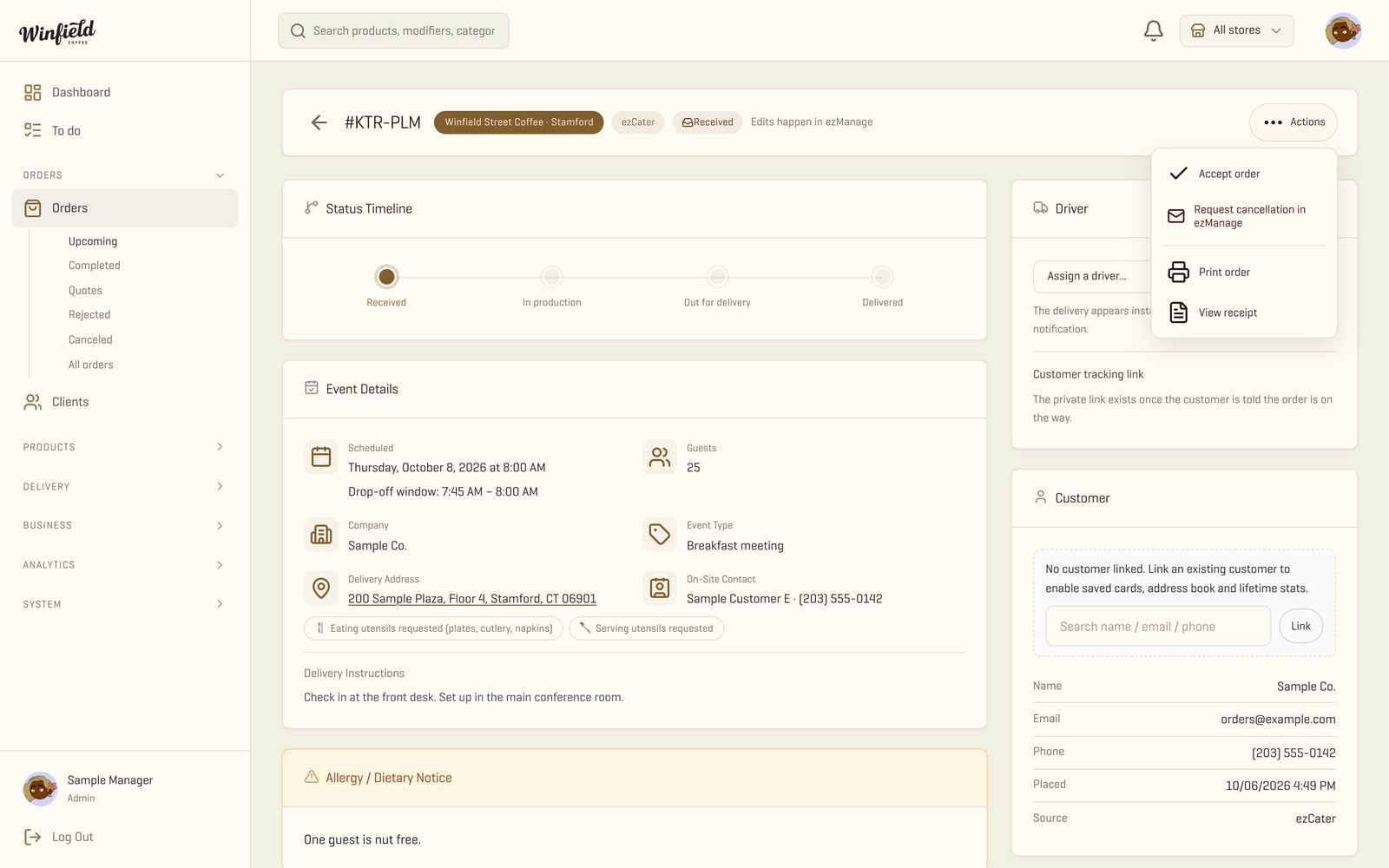
Our guide to getting ezCater orders into your POS explains how that works.
Can you run this workflow on paper?
Yes. A shared sheet with one row per order and one column per stage is enough for a few events a week. Name one person who owns the sheet, and have everyone update the same copy.
Paper starts to slip when two people edit at once, when orders arrive from more than one place or when one day carries several events. That is the moment to look at a system that holds the stages for you.
What does a system for this look like in practice?
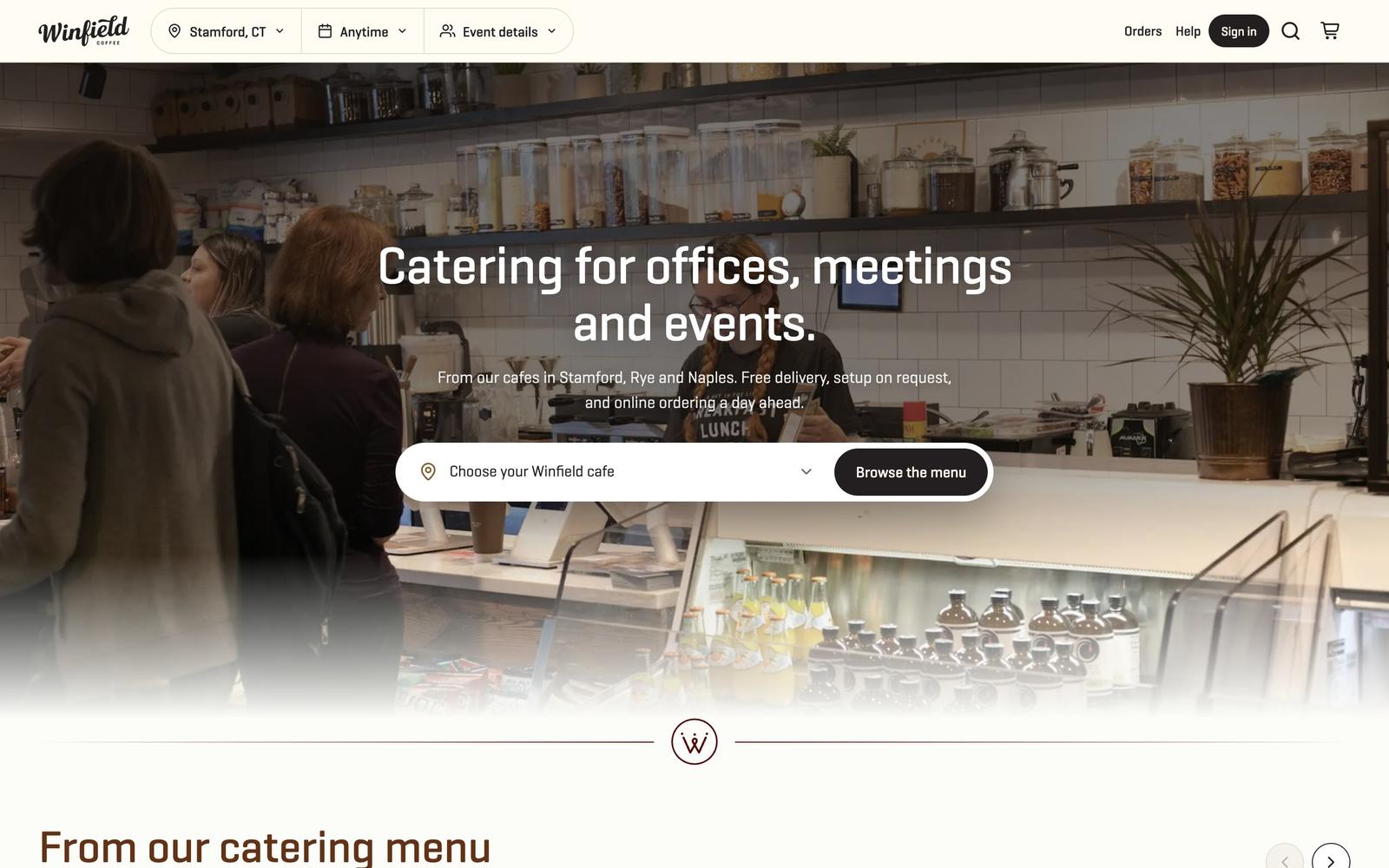
The catering system we built for Winfield Street Coffee takes the order from checkout to the drop-off. Customers order on the store’s own site and ezCater orders arrive in the same dashboard. Managers follow each order through four statuses (received, in production, out for delivery and delivered), assign drivers and track each delivery. The driver app has been in use by Winfield delivery drivers since September.
You can see how it fits together on our catering ordering page or in the overview of our ordering system.
Where should you start?
Our take: begin with the two stages that are easiest to skip, the production sheet and the follow-up. Neither needs software. A one-page sheet the afternoon before and a short note the day after will show which of the other five stages is leaking. Fix that one first.
Frequently asked questions
Who should own the catering workflow in a small restaurant?
One named person, usually the catering manager or the general manager. That person does not do every stage. They own the sheet, check that each stage has an owner and handle anything that falls between two people.
What should a catering production sheet include?
For each order: the drop-off window, item counts, allergy notes, utensils and setup, the on-site contact and the driver's name. Group the orders by window so overlaps are easy to see.
How do I keep two catering orders for the same hour from colliding?
Before you accept the second order, check the first one's window on the same sheet. Count the trays, the people and the drivers each window needs, and close the window when it is full.
What should I send a catering customer after delivery?
A short note the next business day. Thank them, ask whether the food arrived when they needed it and give them a one-step way to order again. Send the invoice with it if one is due.
Comments